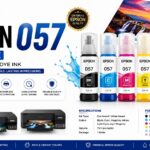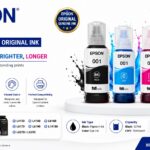
Epson 001 Ink Specifications Colors: Black / Cyan / Magenta / Yellow Black Capacity: 127ml…
Epson L3250 has missing colors, white lines, faded printing, or is not printing properly, follow these steps:
របៀបសម្អាតម៉ាស៊ីនបោះពុម្ព Epson L3250
បើម៉ាស៊ីន Epson L3250 មានបញ្ហា៖
- បោះពុម្ពមិនចេញពណ៌
- មានបន្ទាត់ស
- ពណ៌ស្រាល
- បោះពុម្ពមិនច្បាស់
សូមអនុវត្តតាមជំហានខាងក្រោម៖
វិធីទី១៖ សម្អាតក្បាលបោះពុម្ព (Head Cleaning) ដោយប្រើប៊ូតុងលើម៉ាស៊ីន
- បើកម៉ាស៊ីនបោះពុម្ព។
- ពិនិត្យឱ្យប្រាកដថាមិនមានភ្លើង Error។
- ចុចឱ្យជាប់ប៊ូតុង Stop (ប៊ូតុងរូបត្រីកោណក្នុងរង្វង់) ប្រហែល 5 វិនាទី។
- លែងប៊ូតុង។
- ម៉ាស៊ីននឹងចាប់ផ្តើមសម្អាតក្បាលបោះពុម្ព (ប្រហែល 1–2 នាទី)។
- រង់ចាំរហូតដល់ភ្លើង Power ឈប់ភ្លឹបភ្លែត។
- បោះពុម្ព Nozzle Check ដើម្បីពិនិត្យមើលថាបញ្ហាត្រូវបានដោះស្រាយឬនៅ។
វិធីទី២៖ សម្អាតតាមកុំព្យូទ័រ (Windows)
- បើក Control Panel → Devices and Printers។
- ចុចស្ដាំលើ Epson L3250 → Printing Preferences។
- ចូលផ្ទាំង Maintenance។
- ចុច Head Cleaning។
- បន្ទាប់ពីបញ្ចប់ សូមដំណើរការ Nozzle Check។
- បើនៅតែមានបញ្ហា អាចធ្វើម្តងទៀតបាន 2–3 ដង។
វិធីទី៣៖ Power Cleaning (សម្រាប់ក្បាលបោះពុម្ពស្ទះខ្លាំង)
បើ Head Cleaning មិនជួយទេ៖
- ចូល Printing Preferences → Maintenance។
- ជ្រើស Power Cleaning។
- អនុវត្តតាមការណែនាំនៅលើអេក្រង់។
⚠️ Power Cleaning ប្រើទឹកថ្នាំច្រើន។ កុំធ្វើជាប់ៗគ្នា។ បើនៅតែមិនល្អ គួររង់ចាំប្រហែល 12 ម៉ោង មុនធ្វើម្តងទៀត។
សម្អាតផ្នែកខាងក្រៅ
- បិទម៉ាស៊ីន និងដកខ្សែភ្លើង។
- ប្រើក្រណាត់ទន់ស្ងួត ឬសើមបន្តិច ដើម្បីជូតធូលី។
- សម្អាតកញ្ចក់ Scanner ដោយក្រណាត់ Microfiber។
- កុំបាញ់ទឹក ឬអាល់កុលដោយផ្ទាល់ទៅលើម៉ាស៊ីន។
គន្លឹះសំខាន់ៗ
- ត្រូវប្រាកដថាទឹកថ្នាំនៅលើសញ្ញា MIN មុនធ្វើការសម្អាត។
- បោះពុម្ពឯកសារពណ៌យ៉ាងហោចណាស់ ១ ដងក្នុងមួយសប្ដាហ៍ ដើម្បីការពារក្បាលបោះពុម្ពកុំឱ្យស្ទះ។
- កុំធ្វើ Head Cleaning លើសពី 3–4 ដងជាប់គ្នា ព្រោះវាប្រើទឹកថ្នាំច្រើន។
ប្រសិនបើនៅតែមានបញ្ហា
សូមប្រាប់ខ្ញុំថា បញ្ហាជាក់លាក់ជាអ្វី៖
- 🔲 មិនចេញពណ៌ខ្មៅ
- 🔲 មិនចេញពណ៌ណាមួយ (Cyan/Magenta/Yellow)
- 🔲 បោះពុម្ពទទេ
- 🔲 មានបន្ទាត់ស
- 🔲 ពណ៌មិនច្បាស់
។។។។។។។។។។
If your Epson L3250 has missing colors, white lines, faded printing, or is not printing properly, follow these steps:
Method 1: Clean the Print Head (Recommended)
Using the printer buttons (without a computer):
- Turn on the printer.
- Make sure there are no error lights.
- Press and hold the Stop (triangle in a circle) button for about 5 seconds.
- Release the button. The printer will begin a head cleaning cycle (takes about 1–2 minutes).
- Wait until the power light stops flashing.
- Print a Nozzle Check to see if the problem is fixed. (Epson Support Files)
Method 2: Head Cleaning from Windows
- Open Control Panel → Devices and Printers.
- Right-click Epson L3250 → Printing Preferences.
- Open the Maintenance tab.
- Click Head Cleaning.
- When finished, run Nozzle Check.
- If necessary, repeat 2–3 times. (Epson Support Files)
Method 3: Power Cleaning (For Severe Clogs)
If normal head cleaning doesn’t work:
- Open Printing Preferences → Maintenance.
- Select Power Cleaning.
- Follow the instructions.
⚠️ Power Cleaning uses a lot of ink. Epson recommends waiting about 12 hours before running another Power Cleaning if the first one doesn’t solve the problem. (Epson Support Files)
Clean the Outside
- Turn off and unplug the printer.
- Wipe the exterior with a soft, lint-free cloth.
- Clean the scanner glass with a microfiber cloth.
- Do not use alcohol or spray liquid directly onto the printer.
Important Tips
- Keep the ink tanks at least above the minimum line before cleaning.
- Print a color page once every 1–2 weeks to prevent clogged nozzles.
- Do not perform head cleaning repeatedly (more than 3–4 times in a row), as it wastes ink and may not improve results. (Epson Support)
Share and like: