https://youtu.be/C6DdbMgmPXk Credit: Restore DIY Animation
Can we clean the laptop keyboard?
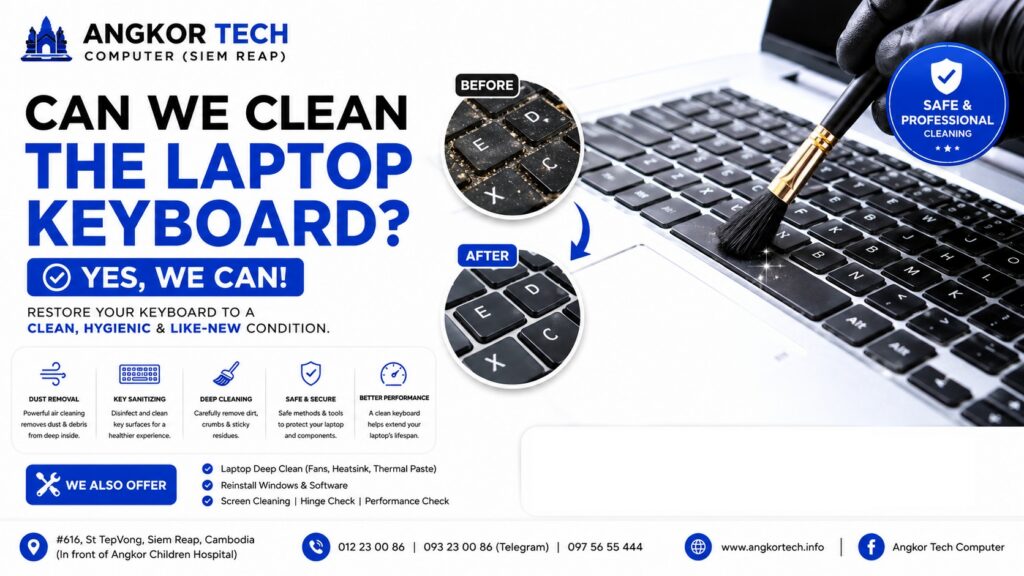
Yes. Laptop keyboards can usually be cleaned safely, but the method depends on the type and severity of the dirt.
Basic cleaning (safe for most laptops)
- Turn off the laptop and unplug it.
- Hold the laptop at an angle (about 75°) and gently tap to dislodge loose debris.
- Use compressed air to blow dust out from between the keys.
- Wipe the keys with a microfiber cloth lightly dampened with 70% isopropyl alcohol.
- Use a soft brush to remove dust around the keys.
Deep cleaning
If the keyboard has sticky keys, food residue, or liquid stains:
- Remove only the keycaps if the keyboard design allows it (many laptop keyboards are fragile, so this is often not recommended).
- Clean the affected areas with isopropyl alcohol (90–99% is preferred for internal cleaning).
- Let everything dry completely before turning the laptop back on.
Avoid
- ❌ Pouring water or cleaning solution directly onto the keyboard.
- ❌ Using household cleaners containing ammonia or bleach.
- ❌ Using excessive force when removing keycaps.
- ❌ Vacuum cleaners with strong suction that may damage keys.
For computer repair shops
Since you own a computer shop, you could offer two levels of service:
- Keyboard Cleaning: Dust removal, key surface sanitizing, compressed air cleaning, and screen cleaning.
- Deep Keyboard Cleaning: Partial disassembly, removal of debris under the keyboard (when possible), fan cleaning, thermal paste replacement (optional), and full internal dust cleaning.
A deep keyboard cleaning is especially worthwhile if customers complain about:
- Sticky keys
- Keys that don’t respond
- Dust, hair, or crumbs under the keys
- Spilled drinks (the sooner it’s cleaned, the better)
If you mean removing every keycap from a laptop keyboard, tell me the laptop model (e.g., Dell Latitude 7490, ASUS TUF A15, MacBook Air M2), because some keyboards can be serviced that way while others are very easy to damage.
បាទ/ចាស អាចសម្អាតក្ដារចុច (Laptop Keyboard) បាន ហើយគួរធ្វើជាប្រចាំ ដើម្បីបំបាត់ធូលី កម្ទេចអាហារ និងមេរោគ។
វិធីសម្អាត Laptop Keyboard
- បិទ Laptop និងដកខ្សែសាកចេញ។
- បង្វិល Laptop បន្តិច ហើយគោះស្រាលៗ ដើម្បីឱ្យធូលី ឬកម្ទេចតូចៗធ្លាក់ចេញ។
- ប្រើខ្យល់បាញ់ (Compressed Air) បាញ់ចន្លោះគ្រាប់ចុច ដើម្បីបណ្តេញធូលី។
- ប្រើជក់ទន់ៗ សម្អាតជុំវិញគ្រាប់ចុច។
- ជូតគ្រាប់ចុច ដោយក្រណាត់ Microfiber ដែលជូតជាមួយអាល់កុល Isopropyl Alcohol 70%–99% (កុំឱ្យសើមពេក)។
បើគ្រាប់ចុចជាប់ ឬមានស្នាមកខ្វក់ខ្លាំង
- អាចបើកសម្អាតខាងក្នុងបាន ប៉ុន្តែគួរធ្វើដោយអ្នកជំនាញ ព្រោះគ្រាប់ចុច Laptop ងាយបាក់ និងខូច។
- ប្រសិនបើមានការហៀរទឹក ឬភេសជ្ជៈចូល Keyboard គួរបិទម៉ាស៊ីនភ្លាមៗ ហើយយកទៅសម្អាតខាងក្នុងឱ្យបានឆាប់។
អ្វីដែលមិនគួរធ្វើ
❌ កុំចាក់ទឹក ឬទឹកសម្អាតដោយផ្ទាល់លើ Keyboard។
❌ កុំប្រើសារធាតុ Bleach ឬ Ammonia។
❌ កុំដោះគ្រាប់ចុចដោយខ្លួនឯង ប្រសិនបើមិនមានបទពិសោធន៍។
❌ កុំប្រើម៉ាស៊ីនបូមធូលីដែលមានកម្លាំងខ្លាំង។
សេវាកម្មដែល Angkor Tech Computer អាចផ្តល់ជូន
- ✅ សម្អាត Keyboard និងអេក្រង់
- ✅ សម្អាតធូលីខាងក្នុង Laptop
- ✅ ប្តូរ Thermal Paste
- ✅ សម្អាតកង្ហារ (Cooling Fan)
- ✅ ពិនិត្យ និងជួសជុល Keyboard ដែលជាប់ ឬមិនដំណើរការ
ការសម្អាត Laptop រៀងរាល់ ៦–១២ ខែម្តង អាចជួយបន្ថែមអាយុកាលម៉ាស៊ីន កាត់បន្ថយកម្ដៅ និងធ្វើឱ្យ Keyboard ដំណើរការល្អជាងមុន។
Share and like: