
LENOVO PRICE LIST FOR MARCH 2025Download
Computer Temperature Guide (CPU & GPU)
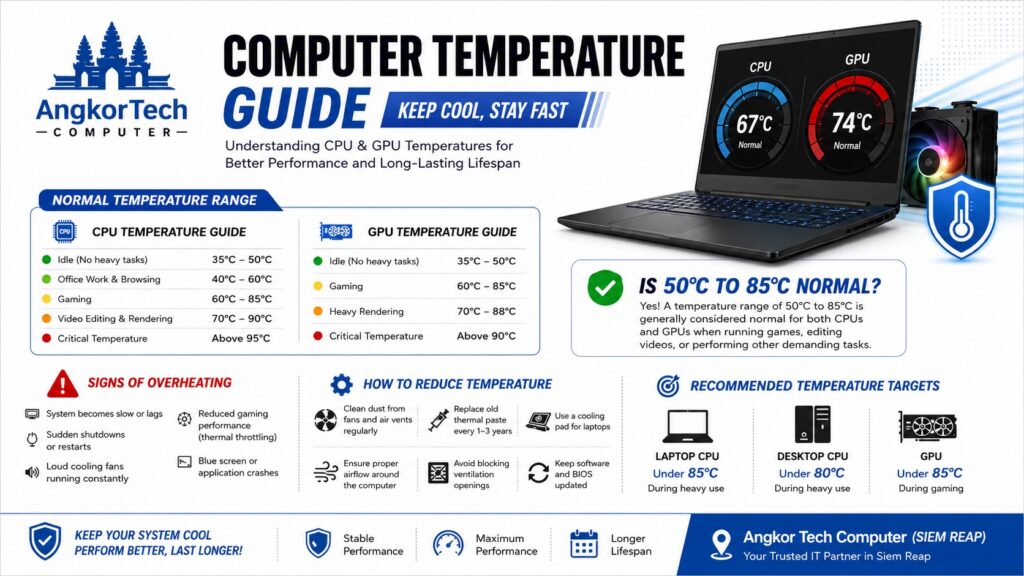
Computer Temperature Guide (CPU & GPU)
Normal Operating Temperature Range
Computer components such as the CPU (Processor) and GPU (Graphics Card) generate heat during operation. Maintaining proper temperatures helps ensure stable performance and extends the lifespan of your device.
CPU Temperature Guide
| Usage Scenario | Normal Temperature |
|---|---|
| Idle (No heavy tasks) | 35°C – 50°C |
| Office Work & Browsing | 40°C – 60°C |
| Gaming | 60°C – 85°C |
| Video Editing & Rendering | 70°C – 90°C |
| Critical Temperature | Above 95°C |
GPU Temperature Guide
| Usage Scenario | Normal Temperature |
|---|---|
| Idle | 35°C – 50°C |
| Gaming | 60°C – 85°C |
| Heavy Rendering | 70°C – 88°C |
| Critical Temperature | Above 90°C |
Is 50°C to 85°C Normal?
Yes. A temperature range of 50°C to 85°C is generally considered normal for both CPUs and GPUs when running games, editing videos, or performing other demanding tasks.
Signs of Overheating
- System becomes slow or lags.
- Sudden shutdowns or restarts.
- Loud cooling fans running constantly.
- Reduced gaming performance (thermal throttling).
- Blue screen or application crashes.
How to Reduce Temperature
- Clean dust from fans and air vents regularly.
- Replace old thermal paste every 1–3 years.
- Use a cooling pad for laptops.
- Ensure proper airflow around the computer.
- Avoid blocking ventilation openings.
- Keep software and BIOS updated.
Recommended Temperature Targets
- Laptop CPU: Under 85°C during heavy use.
- Desktop CPU: Under 80°C during heavy use.
- GPU: Under 85°C during gaming.
Maintaining your computer within these temperature ranges will help ensure reliable performance and longer hardware life.
I can also create this as a branded PDF document for Angkor Tech Computer if you need it for customers or social media posts.
ឯកសារណែនាំអំពីសីតុណ្ហភាព CPU និង GPU
កម្រិតសីតុណ្ហភាពធម្មតា
សមាសធាតុកុំព្យូទ័រ ដូចជា CPU (Processor) និង GPU (Graphics Card) នឹងបង្កើតកម្ដៅនៅពេលដំណើរការ។ ការរក្សាសីតុណ្ហភាពឱ្យស្ថិតក្នុងកម្រិតសមរម្យ នឹងជួយឱ្យម៉ាស៊ីនដំណើរការបានល្អ និងបង្កើនអាយុកាលរបស់ឧបករណ៍។
កម្រិតសីតុណ្ហភាព CPU
| ស្ថានភាពប្រើប្រាស់ | សីតុណ្ហភាពធម្មតា |
|---|---|
| មិនប្រើការងារធ្ងន់ (Idle) | 35°C – 50°C |
| ការងារការិយាល័យ និង Browsing | 40°C – 60°C |
| លេងហ្គេម | 60°C – 85°C |
| កាត់តវីដេអូ និង Rendering | 70°C – 90°C |
| សីតុណ្ហភាពគ្រោះថ្នាក់ | លើសពី 95°C |
កម្រិតសីតុណ្ហភាព GPU
| ស្ថានភាពប្រើប្រាស់ | សីតុណ្ហភាពធម្មតា |
|---|---|
| Idle | 35°C – 50°C |
| លេងហ្គេម | 60°C – 85°C |
| Rendering ឬការងារធ្ងន់ | 70°C – 88°C |
| សីតុណ្ហភាពគ្រោះថ្នាក់ | លើសពី 90°C |
តើសីតុណ្ហភាព 50°C – 85°C ធម្មតាឬទេ?
✅ បាទ/ចាស។ សីតុណ្ហភាព 50°C ដល់ 85°C គឺជាកម្រិតធម្មតាសម្រាប់ CPU និង GPU នៅពេលលេងហ្គេម កាត់តវីដេអូ ឬប្រើកម្មវិធីធ្ងន់ៗ។
សញ្ញាដែលបង្ហាញថាម៉ាស៊ីនកំពុងក្តៅខ្លាំង
- ម៉ាស៊ីនដំណើរការយឺត ឬកក។
- Restart ឬបិទដោយខ្លួនឯង។
- កង្ហារបង្វិលខ្លាំង និងមានសំឡេងរំខាន។
- FPS ធ្លាក់ចុះពេលលេងហ្គេម។
- កម្មវិធី Crash ឬ Blue Screen។
វិធីកាត់បន្ថយសីតុណ្ហភាព
- សម្អាតធូលីក្នុងកង្ហារ និងរន្ធបញ្ចេញខ្យល់ជាប្រចាំ។
- ប្តូរ Thermal Paste រៀងរាល់ 1–3 ឆ្នាំ។
- ប្រើ Cooling Pad សម្រាប់ Laptop។
- ដាក់ម៉ាស៊ីននៅកន្លែងមានខ្យល់ចេញចូលល្អ។
- កុំបិទរន្ធបញ្ចេញខ្យល់របស់ម៉ាស៊ីន។
- អាប់ដេត Driver និង BIOS ឱ្យទាន់សម័យ។
សីតុណ្ហភាពដែលណែនាំ
- Laptop CPU: ក្រោម 85°C ពេលប្រើការងារធ្ងន់។
- Desktop CPU: ក្រោម 80°C ពេលប្រើការងារធ្ងន់។
- GPU: ក្រោម 85°C ពេលលេងហ្គេម។
ការរក្សាសីតុណ្ហភាពឱ្យស្ថិតក្នុងកម្រិតសមរម្យ នឹងជួយឱ្យកុំព្យូទ័ររបស់អ្នកដំណើរការបានល្អ មានស្ថេរភាព និងប្រើប្រាស់បានយូរ។
របៀបពិនិត្យសីតុណ្ហភាព CPU និង GPU នៅលើ Windows
វិធីទី 1៖ ប្រើ Task Manager (GPU ប៉ុណ្ណោះ)
- ចុច Ctrl + Shift + Esc ដើម្បីបើក Task Manager។
- ចុចផ្ទាំង Performance។
- ជ្រើសរើស GPU។
- សីតុណ្ហភាព GPU នឹងបង្ហាញនៅខាងក្រោម (ឧទាហរណ៍: 65°C)។
ចំណាំ៖ Windows មិនបង្ហាញសីតុណ្ហភាព CPU នៅក្នុង Task Manager ទេ។
វិធីទី 2៖ ប្រើ HWMonitor (ណែនាំ)
- ទាញយកកម្មវិធី HWMonitor។
- ដំឡើង និងបើកកម្មវិធី។
- អ្នកអាចមើលបាន៖
- CPU Temperature
- GPU Temperature
- Fan Speed
- Voltage និង Power Usage
វិធីទី 3៖ ប្រើ HWiNFO
- ទាញយក និងបើក HWiNFO64។
- ជ្រើស Sensors Only។
- មើលព័ត៌មាន៖
- CPU Package Temperature
- GPU Temperature
- SSD Temperature
- Fan RPM
វិធីទី 4៖ ប្រើ MSI Afterburner (សម្រាប់ Gaming)
- ដំឡើង MSI Afterburner។
- បើកកម្មវិធី និងចូលទៅកាន់ Monitoring។
- អាចបង្ហាញសីតុណ្ហភាព CPU និង GPU ពេលលេងហ្គេមបាន។
សីតុណ្ហភាពធម្មតា
- Idle: 35°C – 50°C
- ការងារធម្មតា: 40°C – 60°C
- Gaming: 60°C – 85°C
- លើសពី 90°C គួរតែពិនិត្យការបញ្ចេញកម្ដៅ និងសម្អាតម៉ាស៊ីន។
ព័ត៌មានបន្ថែម
បើ Laptop ឬ Desktop របស់អ្នកឡើងដល់ 95°C ឬច្រើនជាងនេះ ជាប្រចាំ អាចត្រូវការសម្អាតធូលី ប្តូរ Thermal Paste ឬពិនិត្យប្រព័ន្ធត្រជាក់។
ប្រសិនបើអ្នកប្រាប់ម៉ូឌែល Laptop ឬ Desktop របស់អ្នក ខ្ញុំអាចណែនាំកម្មវិធីដែលសមស្របបំផុតសម្រាប់ម៉ាស៊ីនរបស់អ្នក។
Share and like: